7 Best SDL XLIFF Converters in 2026: Tested & Compared
You have received an SDLXLIFF file from a client, but you do not have SDL Trados Studio. Now what? This scenario plays out daily for freelance translators and project managers who need to work with SDL's proprietary file format without access to the industry-standard CAT tool.
The good news is that you have options. Whether you need a quick one-time conversion or a full translation workflow solution, there are tools available ranging from free online converters to enterprise-grade platforms. This guide compares the 7 best SDL XLIFF converters available in 2026 that we have tested and evaluated for real-world translation workflows.
What is an SDL XLIFF file?
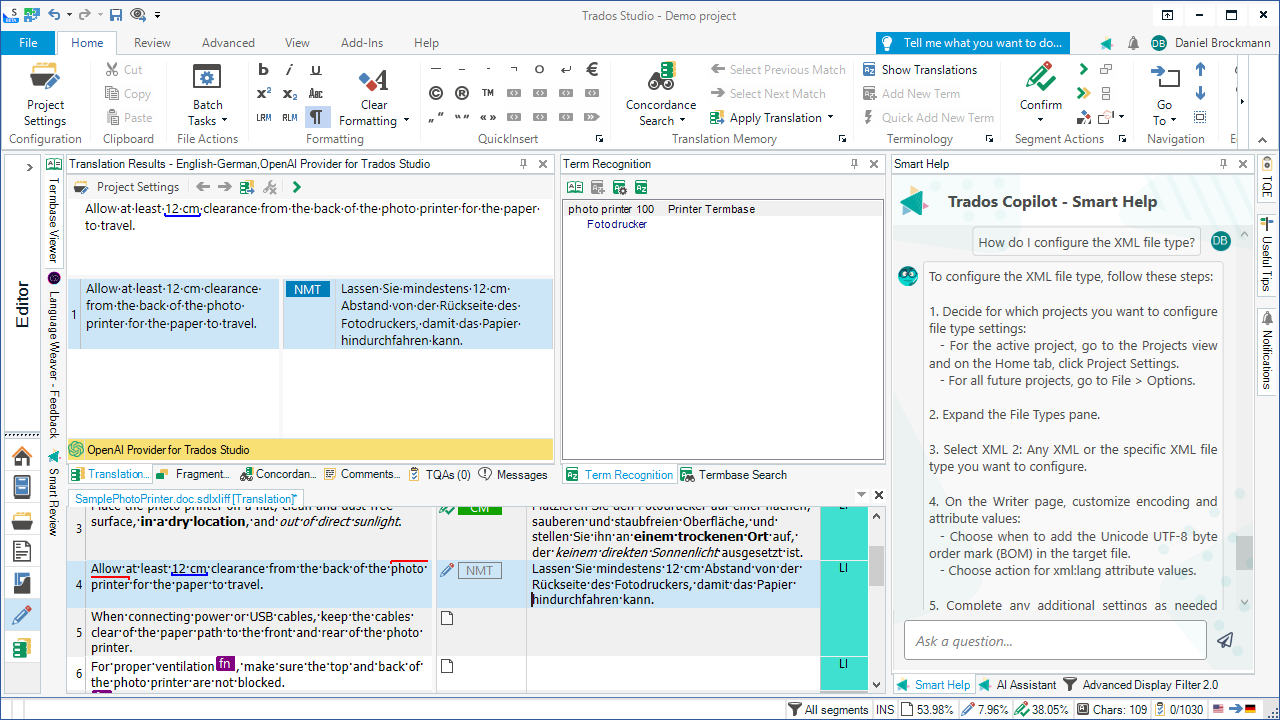
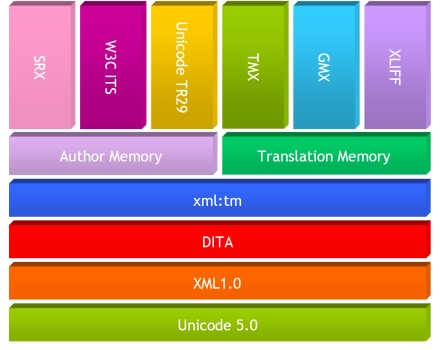
Before diving into the tools, we'll clarify what you're working with. SDLXLIFF is SDL Trados Studio's proprietary variant of the XLIFF (XML Localization Interchange File Format) standard. While standard XLIFF files use the .xliff or .xlf extension, SDLXLIFF files use .sdlxliff.
The key difference? SDLXLIFF includes extension points for Trados Studio-specific features like tracked changes, enhanced commenting, context information for better translation memory matching, and document structure data. These extensions make the format more powerful within the Trados ecosystem but can create compatibility challenges when sharing files with users who don't have Studio installed.
Understanding this distinction matters because it affects which conversion approach will work best for your situation. Some tools handle SDLXLIFF natively, while others require workarounds like renaming the file extension or using conversion filters. For more background on CAT tools and file formats, see our CAT Tools category.
How we evaluated these SDL XLIFF converters
To make this comparison useful, we've tested each tool against the criteria that actually matter in real translation workflows:
-
Ease of use How quickly can you get from file upload to usable output?
-
Output quality Does the converted file preserve formatting, tags, and metadata?
-
Pricing Is there a free tier? What do paid plans actually cost in 2026?
-
Batch processing Can you handle multiple files efficiently?
-
Privacy Where does your data go, and who has access to it?
We've tested these tools with actual SDLXLIFF files to verify their claims, not just reading marketing materials.
SDL XLIFF converter comparison at a glance
|
Tool |
Type |
Price |
Best For |
Output Formats |
|---|---|---|---|---|
|
Online |
Free |
Quick conversions |
DOCX, Excel |
|
|
Cloud Platform |
From $1,200/yr |
Enterprise workflows |
Multiple (50+ formats) |
|
|
Cloud Platform |
From $144/mo |
Software localization |
XLIFF, JSON, etc. |
|
|
Desktop (Open Source) |
Free |
Technical users |
Various via conversion |
|
|
Desktop (Open Source) |
Free |
Freelance translators |
XLIFF, TMX, TTX |
|
|
Online |
Free |
Free MT integration |
82 file formats |
|
|
Plugin |
Free |
Trados compatibility |
TTX, bilingual Word |
The 7 best SDL XLIFF converters for 2026
1. Linigu SDL Converter
Linigu offers a straightforward solution for anyone needing to convert SDL files quickly without jumping through hoops. No registration is required, no software to install, and your files are automatically deleted after conversion.
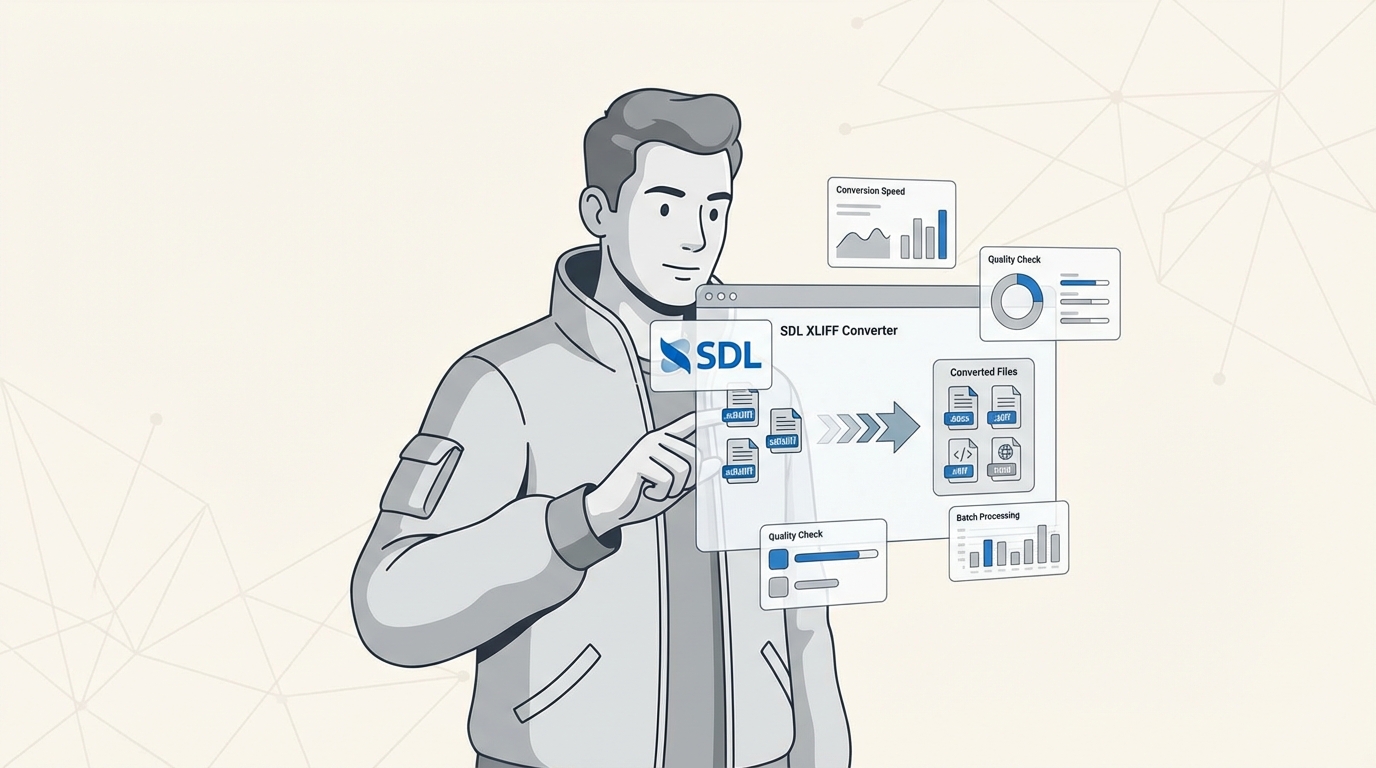
The converter handles the full range of SDL formats: .sdlxliff (bilingual files), .sdlppx (project packages), .sdltm (translation memories), and .sdltb (termbases). Output goes to editable formats like DOCX and Excel, which you can work with in any standard office application.
What we liked:
-
No account creation needed
-
Supports files up to 500MB
-
Privacy-focused with automatic deletion
-
Interface available in 11 languages
-
Completely free
Limitations:
-
Online only (requires internet connection)
-
Basic conversion (no advanced CAT features)
For a quick conversion without commitment, start converting your SDL files here.
2. Smartcat
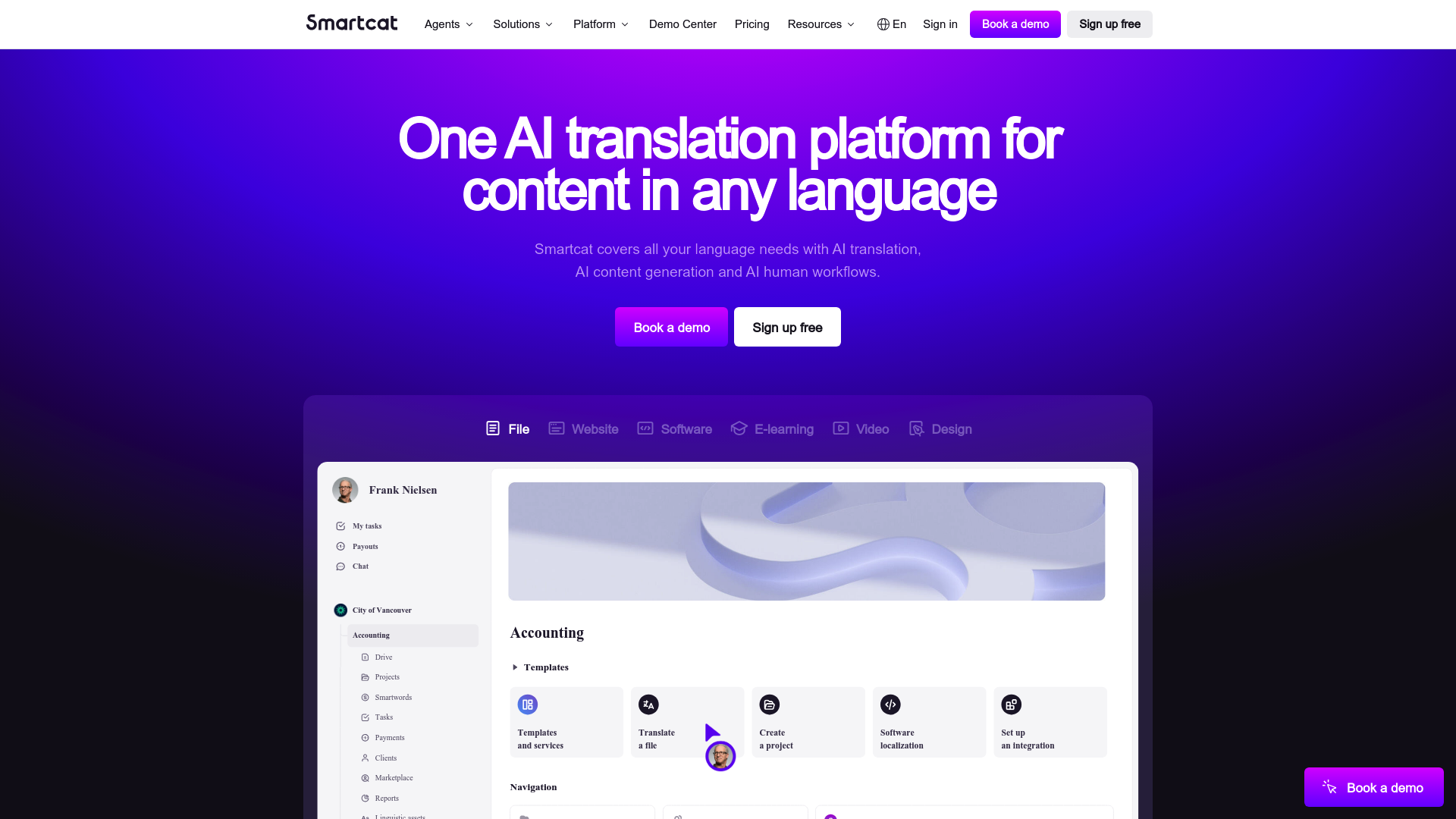
Smartcat positions itself as an all-in-one AI translation platform, and its SDLXLIFF handling reflects that enterprise focus. The platform supports 280+ languages and claims 95% AI translation accuracy, with the system learning from your edits over time.
For SDLXLIFF specifically, Smartcat offers native support: upload files directly, translate using AI or human workflows, then export to your preferred format. The platform includes translation memory that auto-creates if you do not have one, plus collaborative features for team projects.
What we liked:
-
Native SDLXLIFF support without workarounds
-
AI-human hybrid workflows
-
50+ file format support beyond XLIFF
-
Integration ecosystem (Google Docs, WordPress, Figma, etc.)
-
Unlimited user seats on all plans
Limitations:
-
Requires account (even for free tier)
-
Pricing starts at $1,200/year for organizations
-
Can be complex for simple conversion needs
-
G2 rating of 4.6/5 suggests room for improvement
|
Plan |
Annual Price |
Key Features |
|---|---|---|
|
Basic |
$1,200/yr |
1 Content Agent, unlimited users, 1 Collaborative Space |
|
Enterprise |
Custom |
6+ Agents, unlimited spaces, 24/7 support |
Smartcat offers a 15-day free trial if you want to test the platform before committing. Source: Smartcat Pricing
3. Lokalise
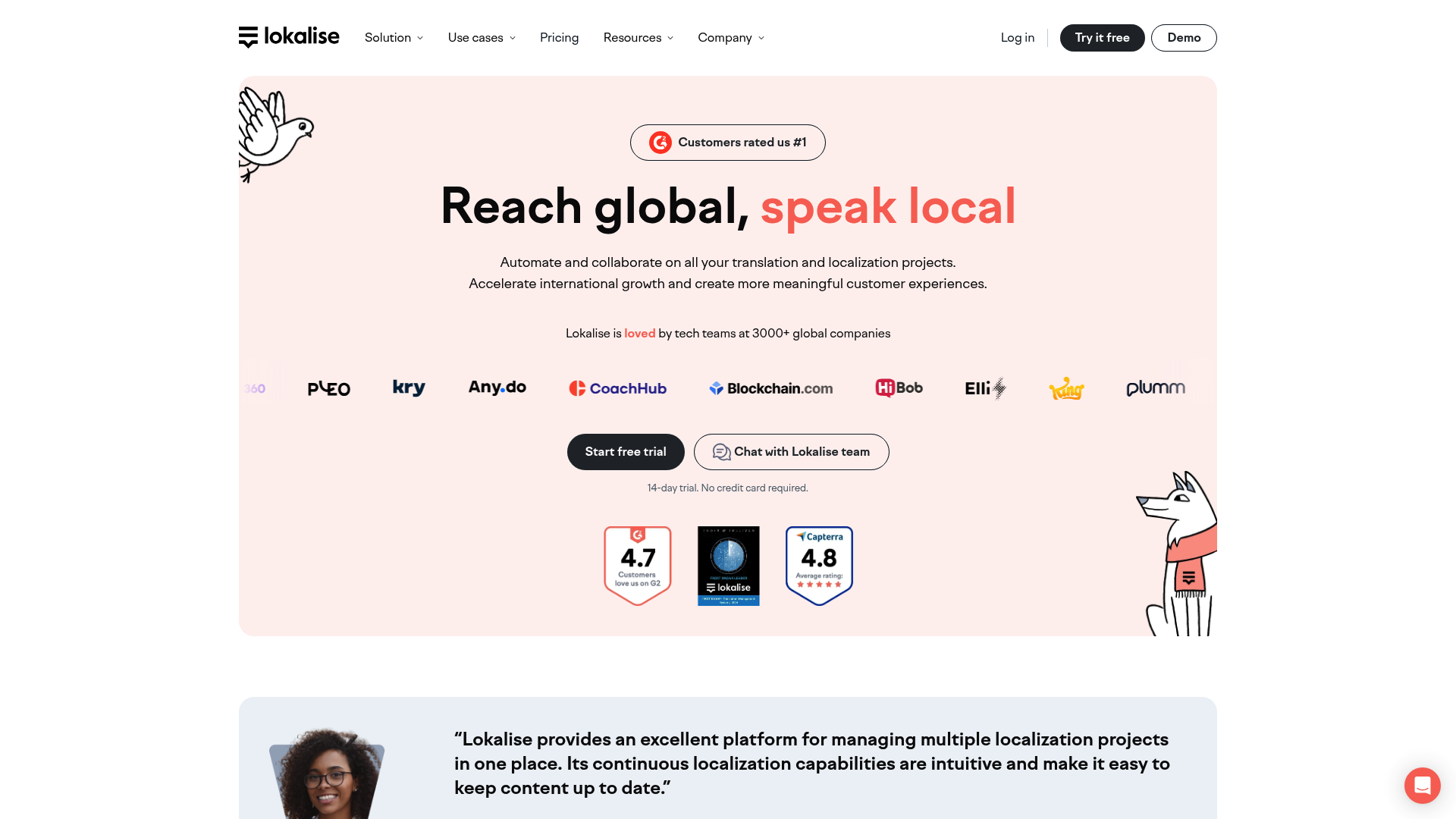
Lokalise takes a different approach, focusing on software localization workflows rather than traditional document translation. Founded in 2017, the platform has built a reputation for user-friendly collaboration features and robust API access.
For XLIFF handling, Lokalise supports both 1.2 and 2.0 standards with a web-based editor that includes bilingual view, focus mode, and ICU plural support. The platform preserves custom attributes during import/export and offers translation memory and glossary features.
What we liked:
-
Clean, intuitive interface
-
Strong collaboration tools for teams
-
14-day free trial (no credit card required)
-
API, CLI, and webhook support
-
Branching and versioning (Growth plan and up)
Limitations:
-
Pricing starts at $144/month (annual billing)
-
Free plan limited to 1 project and 2 languages
-
Overkill for simple file conversion needs
|
Plan |
Monthly Price |
Key Limits |
|---|---|---|
|
Free |
$0 |
500K hosted words, 1 project, 2 languages |
|
Explorer |
$144/mo |
5 projects, 10 languages, 240K AI/MT/yr |
|
Growth |
$499/mo |
Unlimited projects, 50K Pro AI/yr |
|
Advanced |
$999/mo |
150K Pro AI/yr, 15 advanced seats |
|
Enterprise |
Custom |
400K Pro AI/yr, 40 seats, unlimited integrations |
Source: Lokalise Pricing
4. Okapi Framework
Okapi Framework is the power user's choice. This free, open-source toolkit provides a collection of components and applications for localization and translation tasks. It's cross-platform and highly configurable, though that flexibility comes with a learning curve.
The framework includes several tools relevant to SDLXLIFF conversion:
Rainbow A GUI application for launching translation utilities including text extraction to XLIFF, file format conversions, quality verification, and custom pipeline creation.
CheckMate Quality checking for bilingual files including XLIFF, TMX, TTX, and PO formats.
Tikal Command-line tool for extraction/merging, format conversions, and translation resource access.
Filters Plugin for OmegaT Extends OmegaT with additional format support including TTX and IDML.
What we liked:
-
Completely free and open-source
-
Handles batch processing efficiently
-
Highly customizable workflows
-
Active community support
Limitations:
-
Steep learning curve
-
Requires technical knowledge
-
Documentation can be sparse for advanced features
Source: Okapi Framework
5. OmegaT
OmegaT has been a staple of the open-source translation community for years. This free translation memory application runs on Windows, macOS, and Linux, offering professional features without the price tag.
For SDLXLIFF files, OmegaT offers compatibility through two approaches: simply rename .sdlxliff to .xliff and open directly, or install the Okapi Filters Plugin for enhanced format support. The tool handles 30+ file formats including Microsoft Office, HTML, OpenDocument, and MediaWiki.
What we liked:
-
Completely free with no limitations
-
Works offline
-
Fuzzy matching and match propagation
-
Multiple translation memory support
-
Hunspell spell checker included
Limitations:
-
Basic interface (function over form)
-
SDLXLIFF support requires workaround
-
Limited advanced features compared to commercial tools
-
No cloud collaboration
Source: OmegaT
6. MateCat
MateCat stands out as a completely free, web-based CAT tool with no restrictions on users or projects. It integrates adaptive machine translation from ModernMT, which learns from your translations in real-time to improve suggestions.
The platform supports 82 file formats and offers AI-driven features including terminology matching, context-specific definitions, and locale-specific checks for punctuation and numbers. For SDLXLIFF specifically, MateCat handles the format natively.
What we liked:
-
Completely free with unlimited usage
-
200+ language pairs for MT
-
No software installation
-
Secure cloud storage with encryption
-
User-friendly interface
Limitations:
-
Online only
-
Requires internet connection
-
Limited advanced project management features
-
Data stored in cloud (privacy consideration for sensitive content)
Source: MateCat
7. SDLXLIFF to Legacy Converter
For users who need to bridge the gap between Trados Studio and other tools, RWS offers several free plugins through their AppStore. The SDLXLIFF to Legacy Converter is particularly useful for creating backward-compatible files.
This plugin converts SDLXLIFF files to TTX format or bilingual Word documents with Trados markup styles. You can also import from these legacy formats back into SDLXLIFF, making it possible for translators without Studio to work on projects and return files that Studio users can import.
What we liked:
-
Official RWS tool (guaranteed compatibility)
-
Free to download and use
-
Preserves formatting and metadata
-
Allows non-Studio users to work on Studio projects
Limitations:
-
Requires Trados Studio for full workflow (import back)
-
Plugin installation required
-
Limited to conversion (no editing features)
Other useful free plugins include SDLXLIFF Toolkit (for slicing, clearing, and modifying files) and SDLXliff2Tmx (for exporting to translation memory format).
Source: RWS AppStore
Free vs paid: which SDL XLIFF converter should you choose?
The right choice depends on your specific situation. Here is how to think about it:
Choose a free tool when:
-
You need a one-time conversion
-
You're working with small files
-
Privacy is a concern (desktop tools keep data local)
-
Budget is tight
Free options like Linigu SDL Converter, OmegaT, and MateCat handle most basic needs without cost.
Consider a paid tool when:
-
You're managing ongoing projects
-
Team collaboration is essential
-
You need advanced features like translation memory management
-
Integration with other tools matters
Smartcat and Lokalise justify their cost for agencies and enterprise teams, but they may be overkill for individual freelancers.
Privacy considerations: Online tools require uploading files to third-party servers. For sensitive client content, desktop solutions like OmegaT or Okapi Framework keep everything local. Our SDL Converter addresses this with automatic file deletion, but offline tools offer maximum control.
How to convert SDL XLIFF files: a quick guide
Here is the general process regardless of which tool you choose:
Step 1: Choose your converter based on needsQuick one-off? Try an online converter. Ongoing project? Consider a CAT platform. Sensitive content? Go desktop.
Step 2: Upload or open the fileFor online tools, drag and drop your .sdlxliff file. For desktop tools, use File > Open or import.
Step 3: Configure output settingsSelect your target format (DOCX, XLIFF, TMX, etc.) and any specific options like preserving tags or extracting only certain segments.
Step 4: Download converted fileSave the output and verify it opens correctly in your target application.
Tips for preserving formatting:
-
Always keep a backup of the original SDLXLIFF
-
Check that tags are preserved if you need to return to the original format
-
Verify encoding (UTF-8 is standard)
-
Test the converted file in your target application before starting work
For detailed instructions, see our how-to guide.
Choosing the right SDL XLIFF converter for your workflow
Here is a quick summary of who each tool is best for:
For freelancers needing quick conversions: Linigu SDL Converter or MateCat offer the fastest path from SDLXLIFF to editable format without cost or commitment.
For translators wanting a free desktop solution: OmegaT provides professional-grade features without the price tag, though you will need to work around SDLXLIFF compatibility.
For technical users and localization engineers: Okapi Framework offers unmatched flexibility for batch processing and custom workflows.
For agencies and teams: Smartcat or Lokalise provide the collaboration features and integrations that justify their cost at scale.
For Trados Studio compatibility: The RWS AppStore plugins are your best bet for maintaining full compatibility with Studio workflows.
Start with what you need right now. If that's a simple conversion, use a free tool. If you're building a translation workflow, invest in a platform that grows with you.
Frequently Asked Questions
Can I open an SDL XLIFF file without Trados Studio?
Yes. Tools like Linigu SDL Converter, MateCat, and Smartcat support SDLXLIFF natively. You can also rename the file to .xliff and open it in OmegaT or other XLIFF-compatible tools.
What's the difference between SDL XLIFF and standard XLIFF?
SDLXLIFF is SDL Trados Studio's proprietary variant of XLIFF 1.2. It includes extension points for Studio-specific features like tracked changes, enhanced commenting, and context information. Standard XLIFF tools may not fully support these extensions.
Is there a free SDL XLIFF converter that works offline?
Yes. OmegaT and Okapi Framework are both free, open-source desktop tools that handle SDLXLIFF files (OmegaT via the Okapi Filters Plugin or by renaming files).
Can I convert SDL XLIFF to Word format?
Yes. Linigu SDL Converter converts SDLXLIFF to DOCX. The RWS SDLXLIFF to Legacy Converter also exports to bilingual Word format.
Which SDL XLIFF converter is best for large files?
For files up to 500MB, Linigu SDL Converter handles the load. For enterprise volumes, Smartcat or Lokalise offer scalable cloud infrastructure.
Are online SDL XLIFF converters safe for confidential documents?
It depends. Look for tools with automatic file deletion like Linigu SDL Converter. For maximum security, use offline desktop tools like OmegaT that process files locally.
Can I convert SDL XLIFF back to the original format after editing?
This depends on your workflow. If you used the RWS SDLXLIFF to Legacy Converter to create a bilingual Word file, you can import changes back to SDLXLIFF. For other conversions, you may need to manually transfer changes or use the original CAT tool.