Introduction: memoQ Errors Are Usually Human Errors
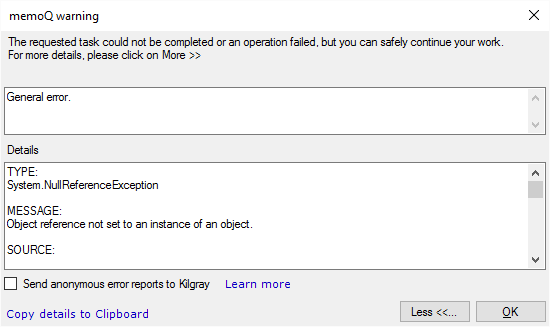
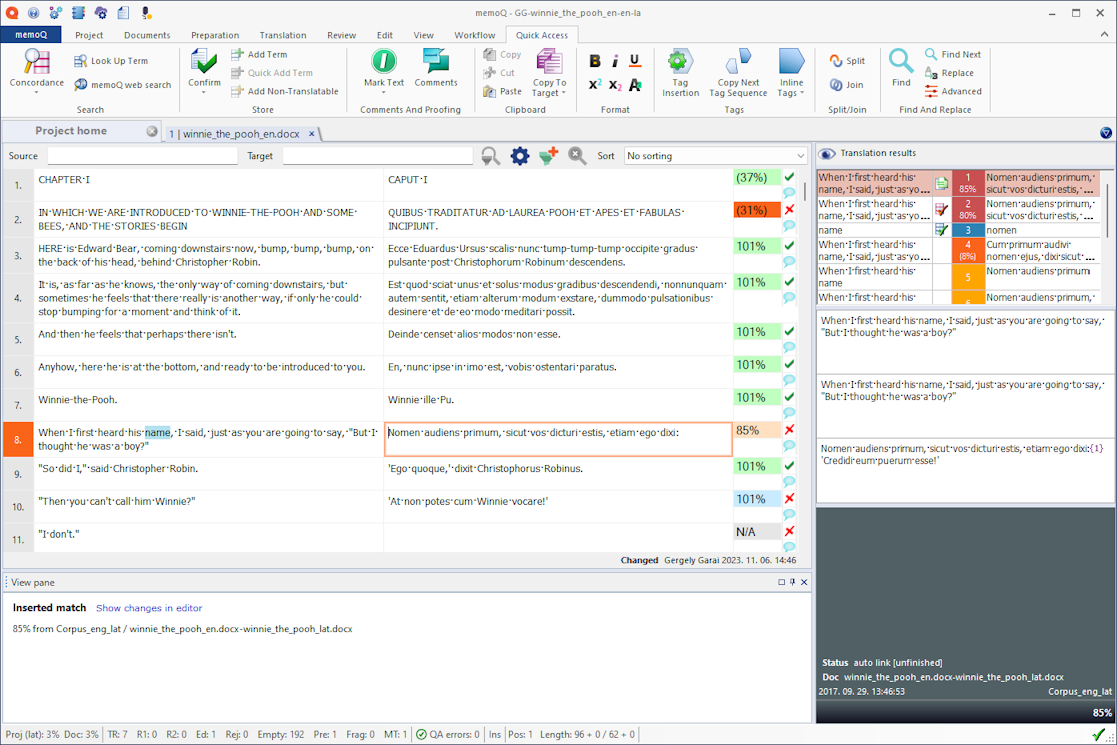
memoQ is known for its translator-friendly design, but even experienced users encounter errors.
In most cases, these errors are not software bugs—they are the result of skipped steps, misunderstood features, or incorrect project settings.
Understanding common memoQ errors helps translators:
-
Work more efficiently
-
Reduce QA feedback
-
Avoid file delivery issues
-
Maintain consistency
This article explains the most frequent memoQ errors, why they occur, and how to fix them properly.
1. Tag Errors (Missing or Misplaced Tags)
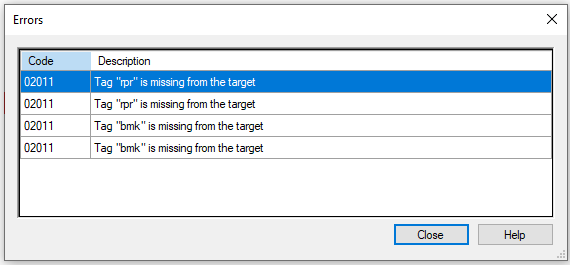
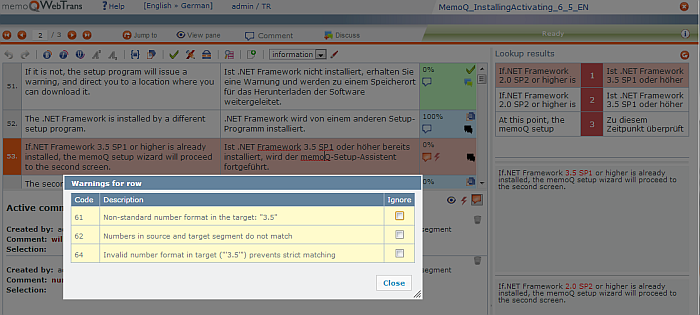
Why It Happens:
-
Tags deleted accidentally
-
Tags typed manually
-
MT output mishandles tags
-
Copy-paste from external editors
How to Fix:
-
Use Ctrl + Q to insert tags
-
Copy tags from source to target
-
Enable tag QA checks
-
Never type tags manually
Tag errors are among the most critical memoQ issues and must always be fixed.
2. Segments Left Unconfirmed
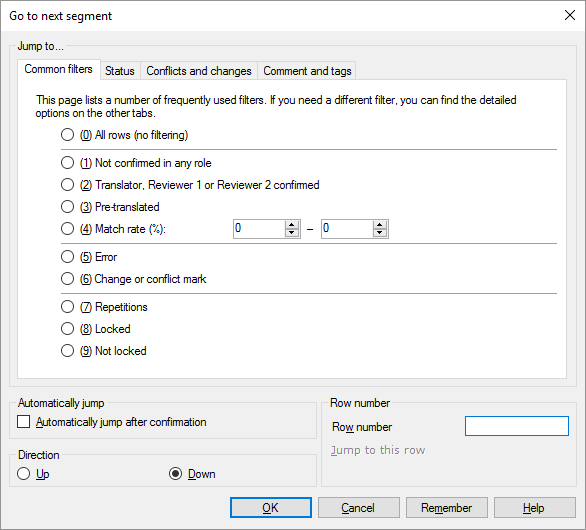
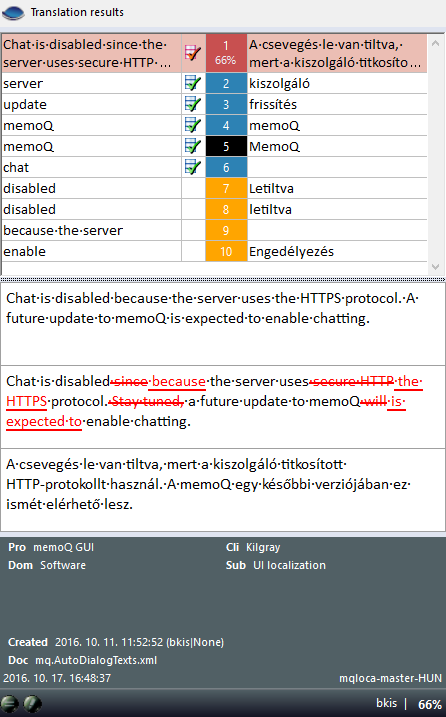
Why It Happens:
-
Translator forgets to confirm
-
Wrong confirmation shortcut used
-
Filters hide unconfirmed segments
How to Fix:
-
Use Ctrl + Enter consistently
-
Filter for unconfirmed segments before delivery
-
Run QA to detect incomplete segments
Unconfirmed segments may remain untranslated in the final file.
3. Translation Memory Not Updating
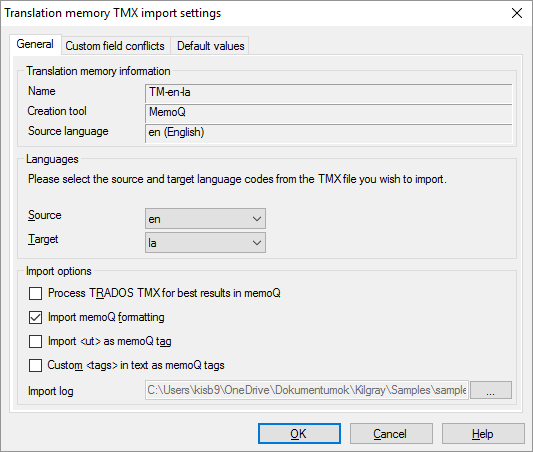
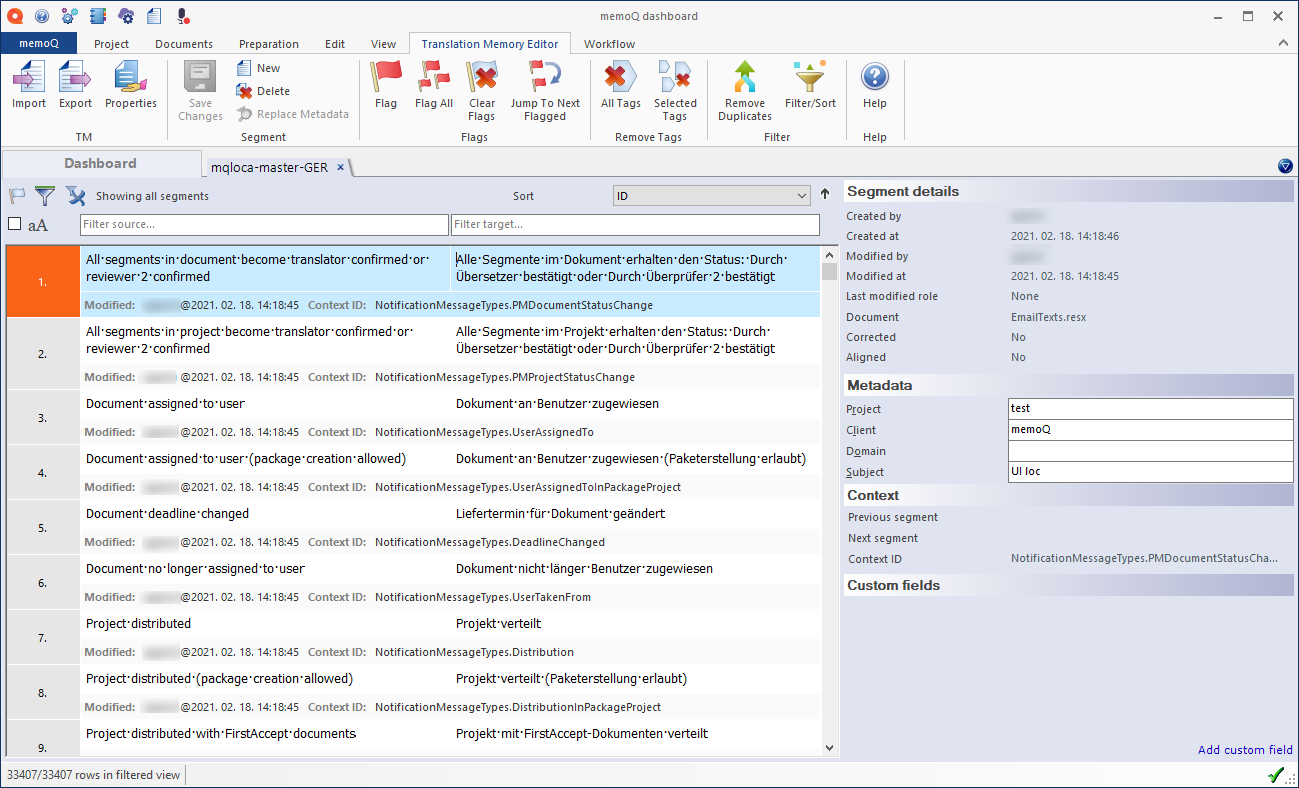
Why It Happens:
-
TM set to read-only
-
Wrong update permissions
-
Segments not confirmed properly
-
Working in a LiveDocs corpus instead of TM
How to Fix:
-
Check TM access rights
-
Verify update settings
-
Confirm segments correctly
If TM does not update, future consistency is lost.
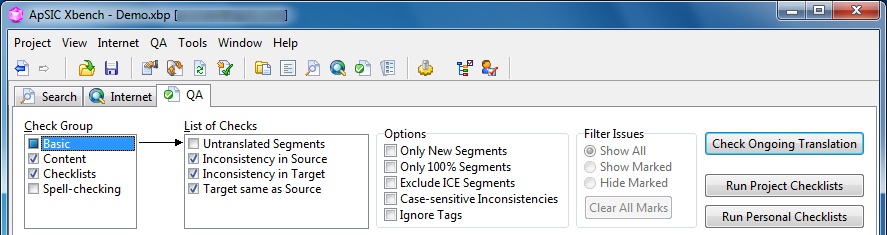
4. QA Warnings Ignored or Misinterpreted
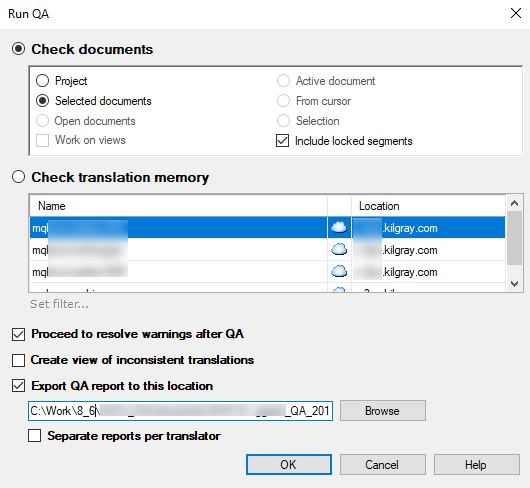
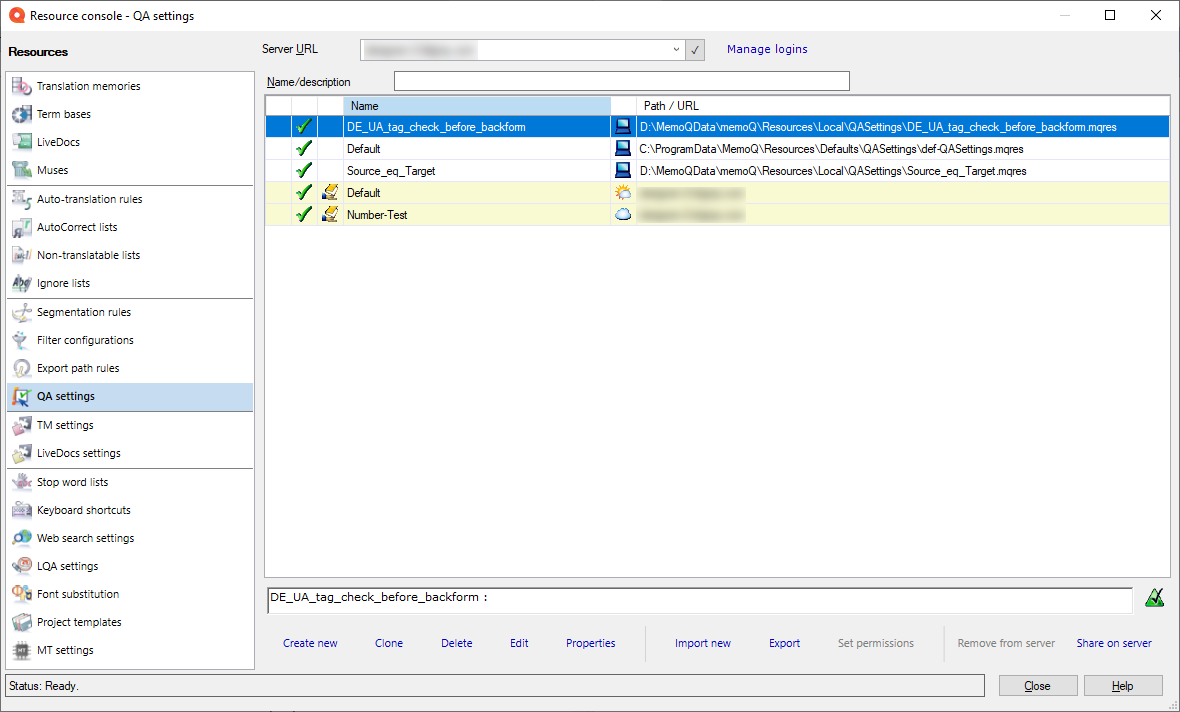
Why It Happens:
-
QA run only at the end
-
Warnings misunderstood
-
Errors marked as “ignored” without review
How to Fix:
-
Run QA regularly
-
Treat tag and terminology errors as critical
-
Review every QA warning consciously
QA is not a formality—it protects deliverables.
5. Terminology Recognition Not Working
Why It Happens:
-
Termbase not added to the project
-
Wrong language variants
-
Termbase indexing issues
How to Fix:
-
Attach termbase correctly
-
Check source and target languages
-
Rebuild termbase index
If terms are not highlighted, terminology consistency cannot be guaranteed.
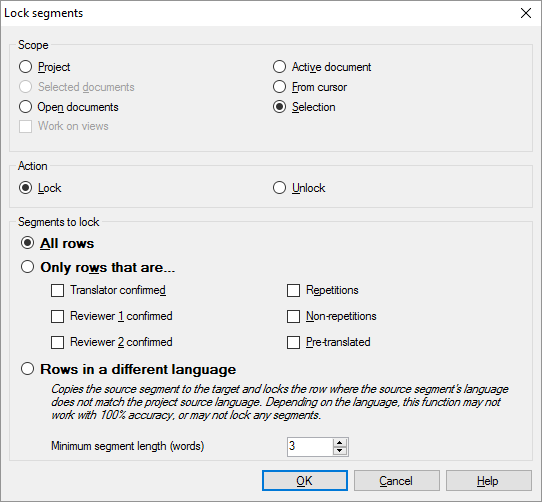
6. Auto-Propagation Not Applying
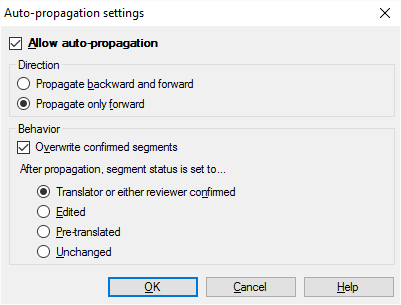
Why It Happens:
-
Auto-propagation disabled
-
Slight differences in tags
-
Context variations between segments
How to Fix:
-
Enable auto-propagation in settings
-
Compare tags carefully
-
Apply translations manually when needed
Auto-propagation works only with true segment identity.
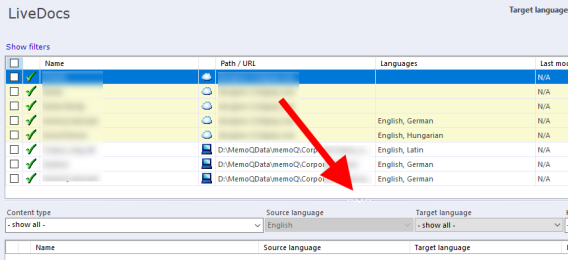
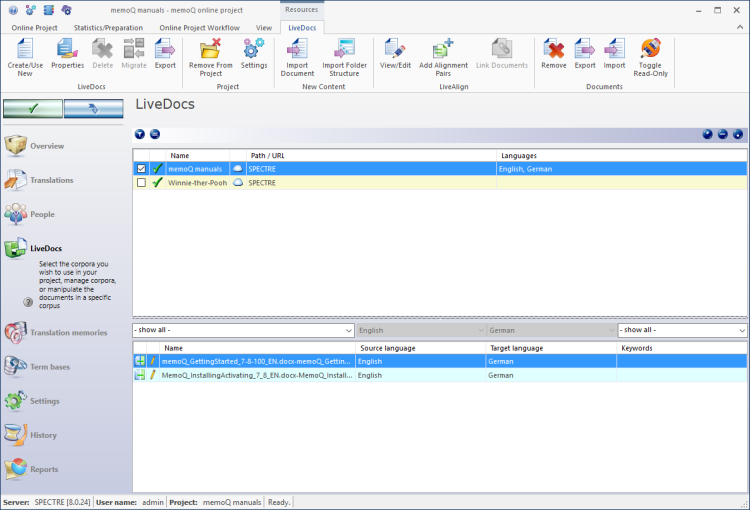
7. LiveDocs Misuse and Confusion
Why It Happens:
-
Confusing LiveDocs with TM
-
Expecting automatic updates
-
Using unaligned LiveDocs files
How to Fix:
-
Understand LiveDocs is reference-based
-
Align documents properly
-
Use TM for reusable translations
LiveDocs supports research—not automation.
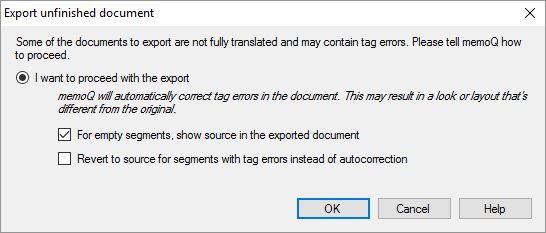
8. File Export and Target Generation Errors
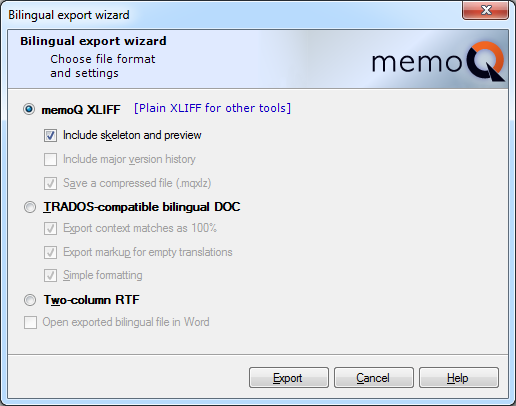
Why It Happens:
-
Unresolved tag errors
-
Locked segments modified
-
Unsupported characters
How to Fix:
-
Resolve all QA errors
-
Check locked segments
-
Regenerate target after fixing issues
If export fails, delivery is blocked.
9. Project Settings Configuration Errors
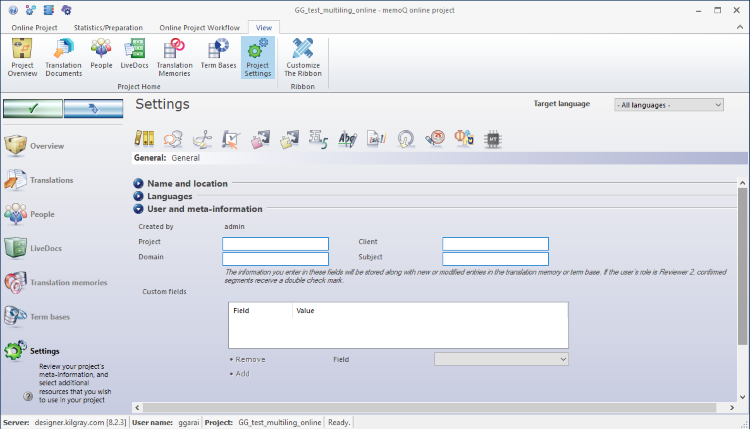

Why It Happens:
-
Wrong language variants
-
Missing TM or termbase
-
Incorrect QA profile
How to Fix:
-
Review project settings before starting
-
Verify language codes
-
Test with a sample segment
Many problems originate before translation even begins.
Conclusion: memoQ Errors Are Preventable
Most memoQ errors are predictable and avoidable.
They happen when translators rely on habit instead of understanding.
Professional memoQ users:
-
Respect tags
-
Confirm segments consistently
-
Use QA proactively
-
Understand TM vs LiveDocs
-
Check project settings first
Errors are not failures—they are feedback from the system.
Mastering memoQ means learning to listen to those signals.
Comments ()
No comments yet. Be the first to comment!